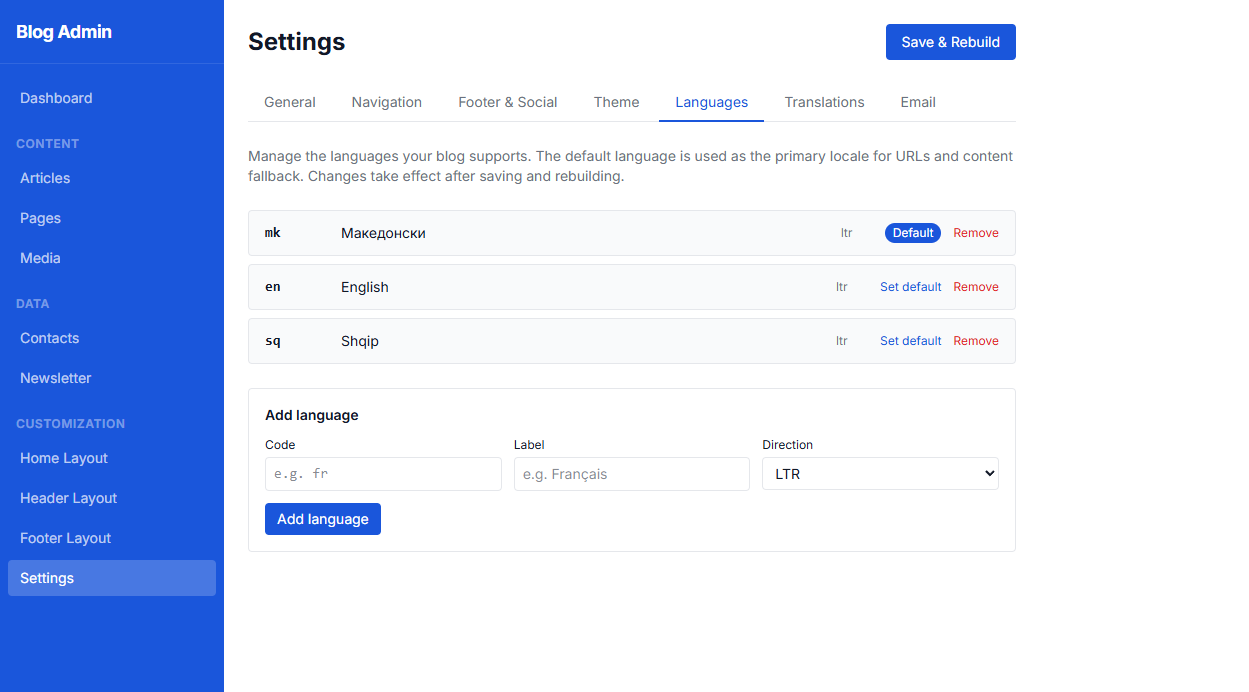
folio.mk is multilingual by design. Every content type — articles, pages, home layout blocks, header, footer, nav labels, and system UI strings — supports per-language translations. The default installation ships with three active languages: Macedonian (MK), English (EN), and Albanian (SQ).
Managing languages
Go to Settings → Languages. Here you can:
See all configured languages with their language code, name, and status.
Toggle any language on or off — disabled languages are hidden from the visitor-facing language switcher and their content is not rendered.
Set the default language — this is the language the site renders when no language prefix is in the URL.
Add a new language by entering an ISO 639-1 code and a display name.
After changing languages, click Save & Rebuild.
Translating articles
Open any article in the editor. The language tabs at the top let you switch between translations. Each translation has its own independent title, slug, excerpt, body, tag, and SEO metadata. If you leave a translation empty, that language version of the article is not published even if the article is set to Live.
Translating pages
Pages work the same way as articles — each page can have translations in all active languages. The Pages list shows a Translations column indicating which language versions exist (e.g. "en, mk, sq"). Click Edit to open the page in the block builder, then use the language tabs to switch and edit each language independently.
Translating home page layout and builders
In the Home, Header, and Footer builders, text blocks that have translatable content show language tabs at the top of the builder. Switching tabs changes which language's text is shown in the canvas and edited in the inspector.
Not every block has translations — purely decorative blocks (images, icons, structural containers) share the same content across languages. Only blocks with a translations property — typically Text and Button blocks with user-visible copy — switch content per language.
Translating system strings
Go to Settings → Translations. This tab lists all built-in UI strings — labels like "Read more", "Subscribe", "Send message", "Latest articles", and accessibility text. Each string has a field for every active language. After editing, click Save & Rebuild.
The language switcher on your site
Visitors switch language using the Language Switcher block in the header. Clicking a language reloads the current page in that language. For articles and pages, folio.mk uses the slug from the matching translation — so if a translation does not exist for a given page, the visitor is redirected to the default language version instead.